
MSVIA Client Portal
Frequently Asked Questions
From MSVIA’s website, click “Client Portal.” The first time you log into the portal, you will create your account and set your password. In order to create an account, you will need a policy number of a current, active policy, plus your email address and phone number (both should be ones used to conduct business with MSVIA).
The Primary Contact will receive an email from MSVIA advising that a new document(s) has been added to the Portal.
Using a cloud service provides peace of mind knowing you’re always accessing the most up-to-date software, which means increased data security. In addition to these protections, the MSVIA portal will require two-factor authentication; a code will be sent to the email on file that must be entered before you can access your portal.
No, the Portal is for document retrieval only. Please see your invoice for payment instructions. Claims should be reported directly to the insurance carrier.
The practice should consider who should be privy to the practice’s insurance information, as some documents contain sensitive information. Anyone in a practice can create a log-in, as long as their email is on file with MSVIA, however, only the Primary Contact will receive notification of new documents.
It’s important for the practice to advise us when staff with Portal access are no longer with the practice so that we may turn off their access. If a user needs to be deleted or inactivated or to update the Primary Contact, please send the information to us at customerservice@msvia.org or advise your MSVIA representative.
If a user needs to be deleted or inactivated or to update the Primary Contact, please send the information to us at customerservice@msvia.org or advise your MSVIA representative.
Policy documents will continue to be sent to you, either by the carrier or by us.
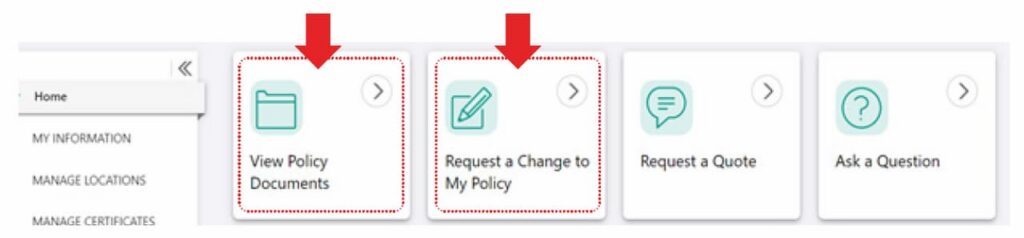
From the home screen, click View Policy Documents or Request a Change to My Policy to go to a list of the names or corporate entities to which the user has access.
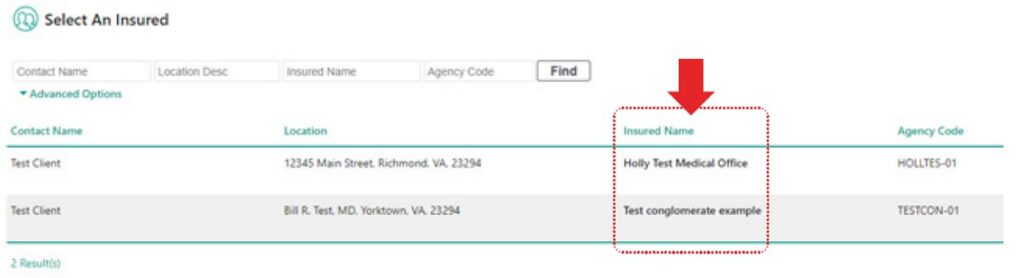
A list of the Insured Names will appear. The Client Portal recognizes the user as authorized to view these Insured Names. Click on a name to view the documents or policies associated with that Insured Name.
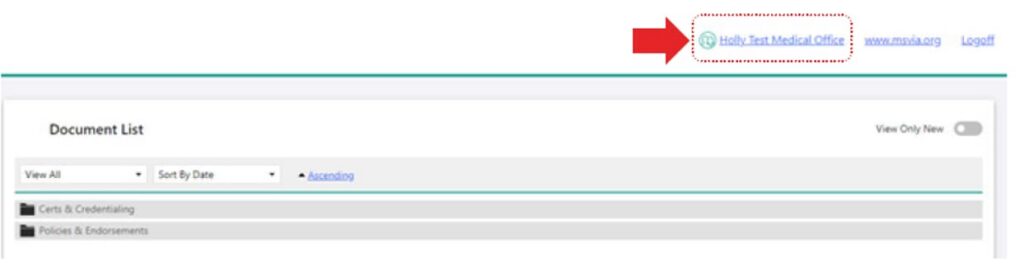
To know which Insured Name you are in, the name will show on the right side of the screen. Click the browser’s back button to navigate back to previous screens.
Let us protect your future.